
Channels
Your connected channels, their voices, and how much of the week each one gets.
A channel is one connected destination: an X account, a LinkedIn profile or page, a Farcaster account, a Paragraph publication. Connecting is done in Settings; what each channel is for is decided on Content Strategy.
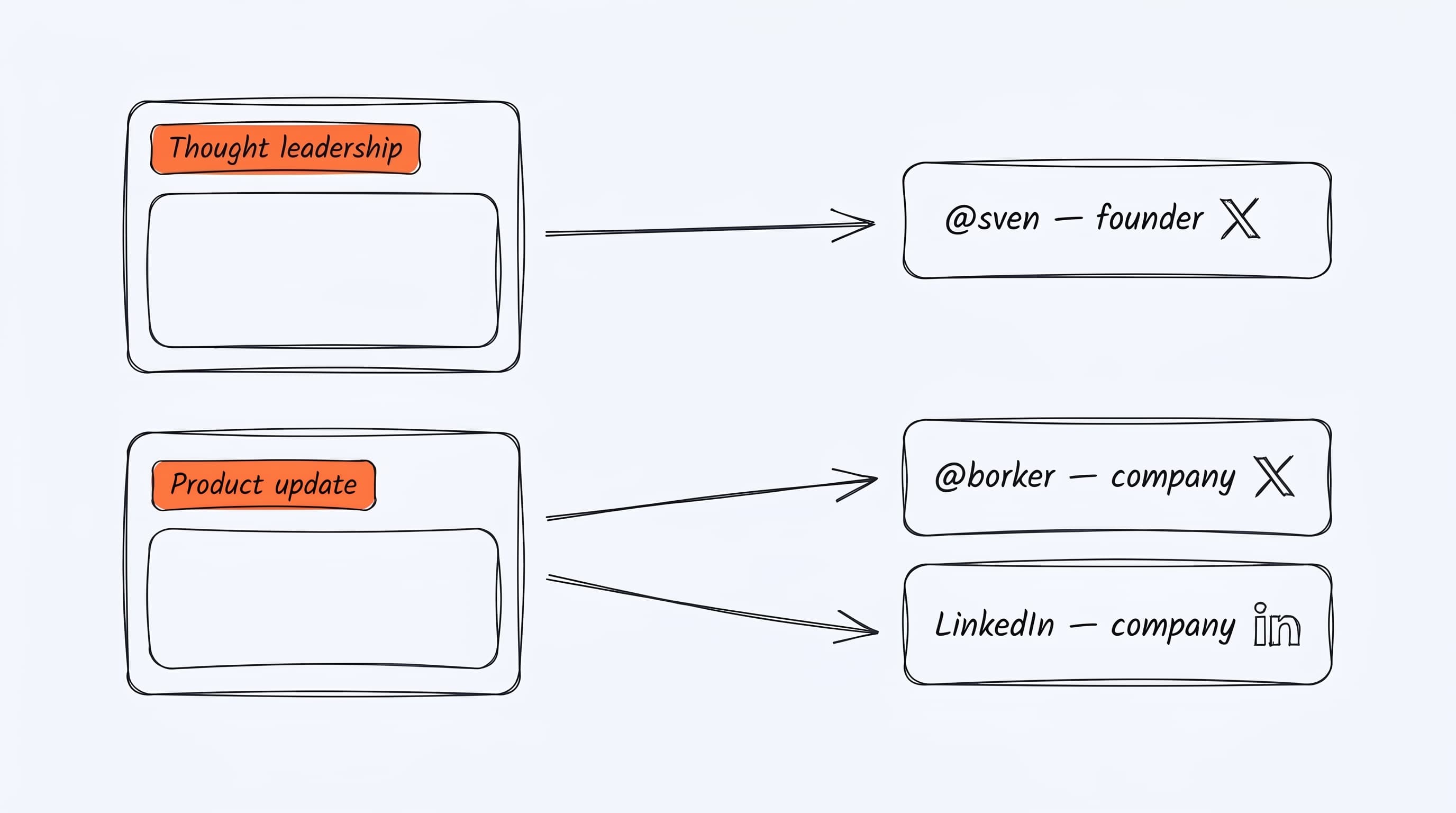
Most workspaces eventually have more than one channel per platform, say a founder X and a company X. Each one is a destination on Content Strategy with its own voice (yours or your brand's) and its own share of the week, so a post is written for the channel it was planned for. There is nothing else to wire up.
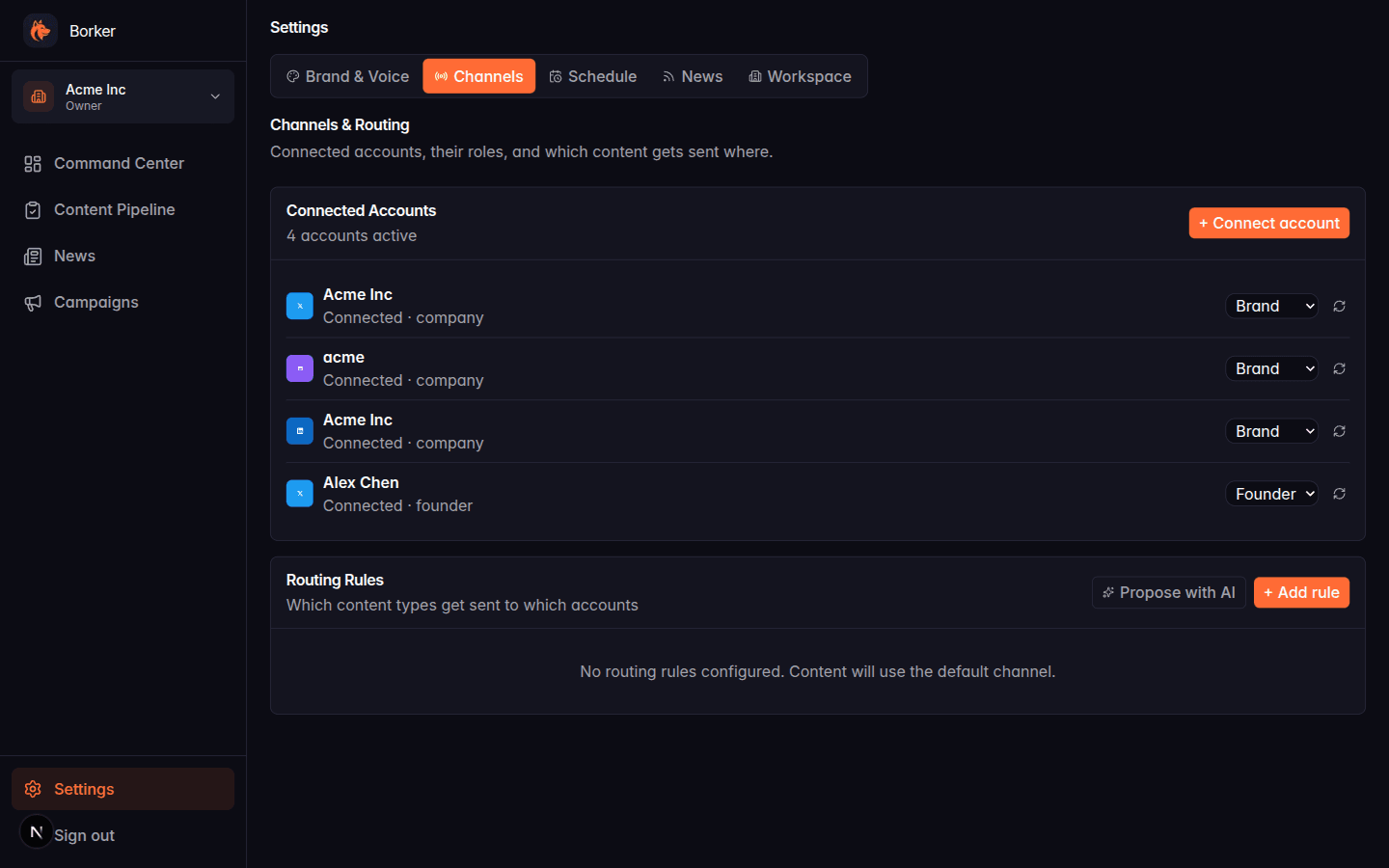
Connected accounts
Each connected channel shows:
- Platform icon (X, LinkedIn, Farcaster, Paragraph)
- Display name and handle
- Connection status (Connected / Disconnected)
- Account type: Company, Founder, or Product (see below)
The + Connect account button starts the OAuth flow for the platform you select. You authorize Borker on the platform's authorization page, and the channel appears in your list.
Account types
When you connect a channel you pick one of three account types:
| Type | Use for |
|---|---|
| Company | Your main brand account (e.g. @acme_inc) |
| Founder | A personal account where the founder posts as themselves |
| Product | A product-specific sub-brand account |
Account type affects:
- Content generation (founder posts can be more personal, company posts more formal)
Multiple accounts on the same platform
You can connect multiple accounts per platform. For example:
- 2 X accounts:
@acme_inc(company) and@alexchen(founder) - 2 LinkedIn accounts: Company page and personal profile
Each one shows as a separate column in the Command Center timeline and the Content Pipeline.
Disconnecting a channel
Click the three-dot menu on any channel and select Disconnect. This removes the channel from Borker but doesn't delete content that was previously scheduled/published through it.
Channel sync
If a scheduled post isn't appearing as published even though it went live, click Sync Channels in the Pipeline → Scheduled / Published tab header. This reconciles Borker's record with the publishing backend and catches up on any missing post statuses.
Channel publishing is fully managed inside Borker. You don't need any external dashboards or third-party accounts.